Quick answer:
The “Report Phishing” button in Outlook is located in the toolbar above a selected email.
In both Classic Outlook and the New Outlook, it appears as a “Report Message” or “Report” button, with options to report as phishing or junk.
Depending on your version, the button may be visible directly in the toolbar or available under the three dot menu.
How to Report Phishing in Outlook Classic
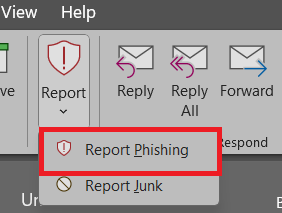
In Outlook Classic, the report phishing button is located at the far right in the toolbar directly above the selected message:

By clicking this button, you get the option to either report as phishing, junk, or not junk.
How to Report Phishing in the New Outlook (Windows App)
In the New Outlook (for Windows), the report phishing button can again be found in the toolbar above the selected message. It looks like this:

By clicking it, you get the option to report as phishing or report as junk.
Alternatively, you can report phishing by clicking the three dots on the top right of any message:

Afterwards you can select ”report phishing” like so:

How to Report Phishing in Outlook on the Web
If you go to https://outlook.live.com you can access the web-based version of Outlook.
The interface on the web is very similar and often identical to the New Outlook Windows application.
The toolbar above the message you have selected is identical to the toolbar in the app version. You can find the report button above the message you have selected:

In the web version you also have the option to report phishing through the three dots in the top-right corner of any message:

By clicking it, select ”report” in the dropdown. Afterwards, you again have the option to Report phishing:

Why the Report Button May Be Missing
There are several reasons why the report button may be missing:
- You’re using an unsupported Outlook version
- The feature to report messages is disabled in the admin center
- An Office update reset your toolbar settings
The locations described earlier in the article are accurate for common Outlook setups. If the Report button isn’t visible it usually means the feature is disabled or not available in your environment.
In work or school accounts, the feature can be controlled by an organization’s settings. If it is disabled by an administrator the button will not appear.
Administrators can review and manage these settings in the Microsoft 365 Defender portal: https://security.microsoft.com
This is where the relevant settings for user reporting can be found:

This is only applicable if you’re an administrator.
If you’re interested you can read this guide by Microsoft, which explains how reporting phishing works and where the button can be found.
What to Do If the Report Button Is Missing in Outlook
The first step is to check whether you have the correct Outlook version.
Check Your Outlook Version Against the Minimum Requirement
Before troubleshooting anything else, confirm that your version of Microsoft Outlook actually supports the built-in Report feature. If your version is below Microsoft’s minimum requirement, the button won’t show.
- Windows (Desktop App):
Go to File → Office Account → About Outlook: - Mac:
Click Outlook in the top menu → About Outlook - Mobile (iOS/Android):
Open the app → Go to Settings → Scroll to view the version number - Outlook on the Web:
No version check needed—this version is always supported

To use the built-in reporting feature, your Outlook version should meet or exceed:
- Windows (Microsoft 365): Version 16.0.17827.15010 or later
- Enterprise Channels: Version 16.0.18025.20000+ or 16.0.18526.20024+
- Mac: Version 16.89 or later
- iOS: Version 4.2511 or later
- Android: Version 4.2446 or later
- Outlook on the Web / New Outlook: Supported by default
If your version is below these benchmarks, updating Outlook is required before the Report button can appear. These requirements are based on Microsoft’s articles.
Microsoft has made the Report feature built directly into Microsoft Outlook in supported, up-to-date versions. There’s no need to install or manage an add-in separately as the feature is included by default. If you’re on a supported version, the Report button should already be available.
Because of this, the issue is usually related to version compatibility or settings managed through Microsoft 365 Defender, not missing add-ins.
Note: You may need to reach out to your Microsoft 365 admin, as they control the settings that determine whether this feature is available.
You can learn more about phishing by reading our comprehensive article on how to avoid phishing.
Leave a Reply